
Order Shipped Notifications
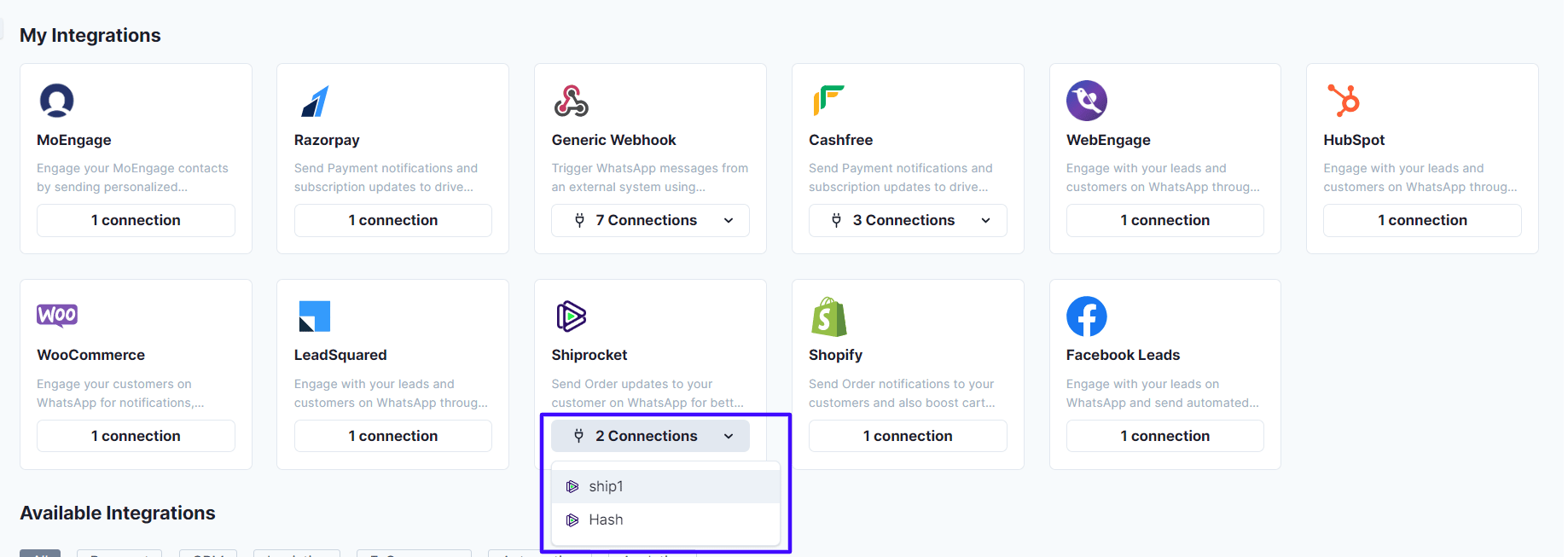
To send the order shipped notifications automatically, you will have to create a workflow under the ShipRocket Integration with Gallabox. Let’s delve into that.- Go to My Integration. Click on the ShipRocket Integration and choose the connection name that you would like to use.
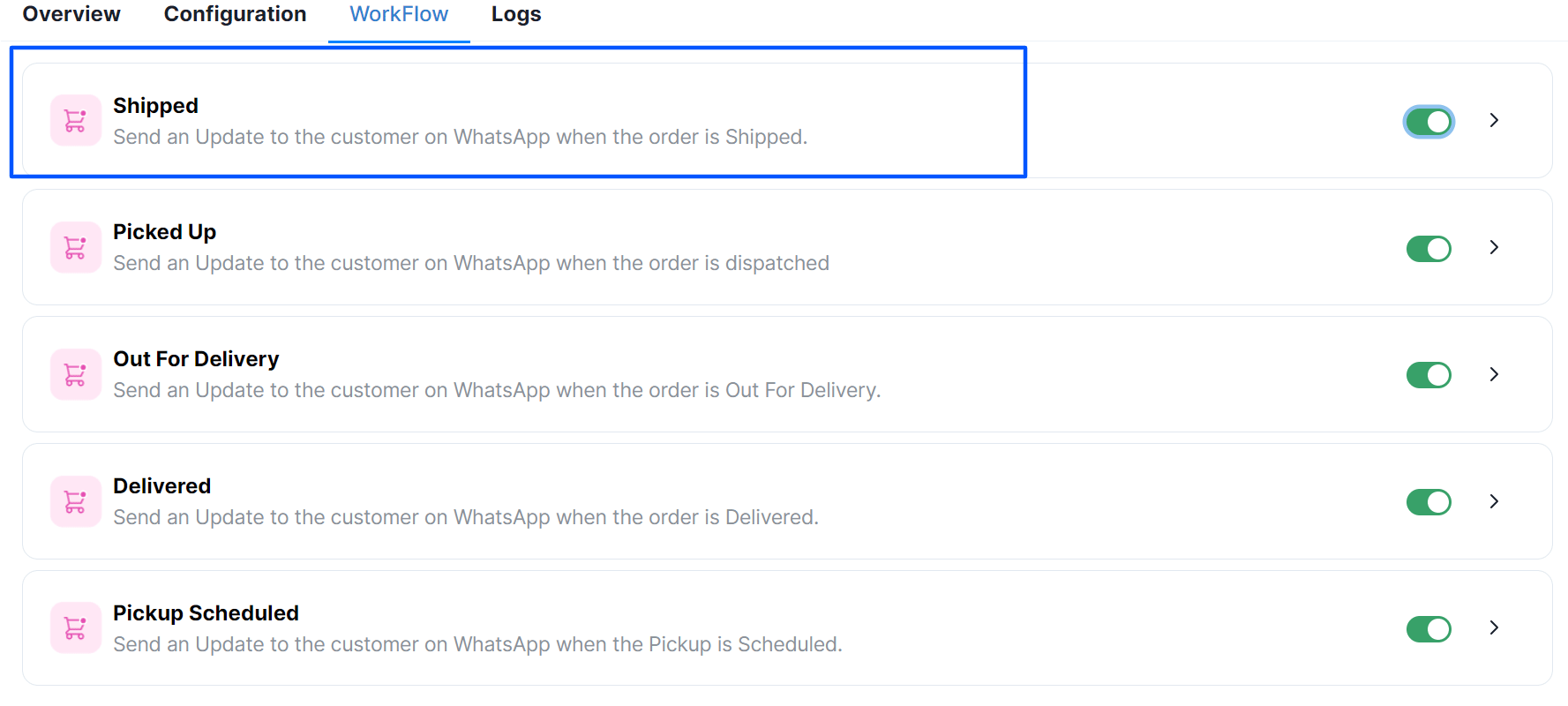
- Click on the toggle button beside Order Shipped Workflow.
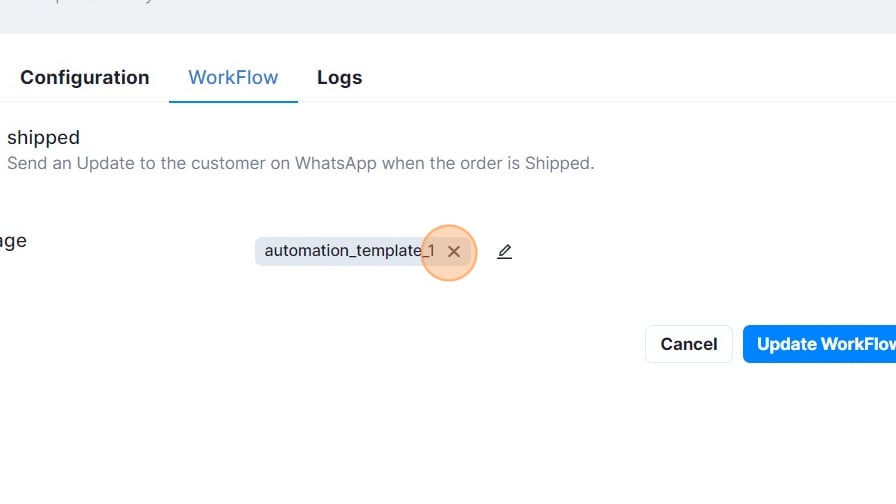
- Map the variables for the selected message templates and click on Submit.
Order Pickup Notifications
To send the notifications when the order is dispatched automatically, you will have to create a workflow under the ShipRocket Integration with Gallabox. Let’s delve into that.- Go to My Integration. Click on the ShipRocket Integration and choose the connection you would like to use.
- Click on the toggle button beside Order Picked Workflow
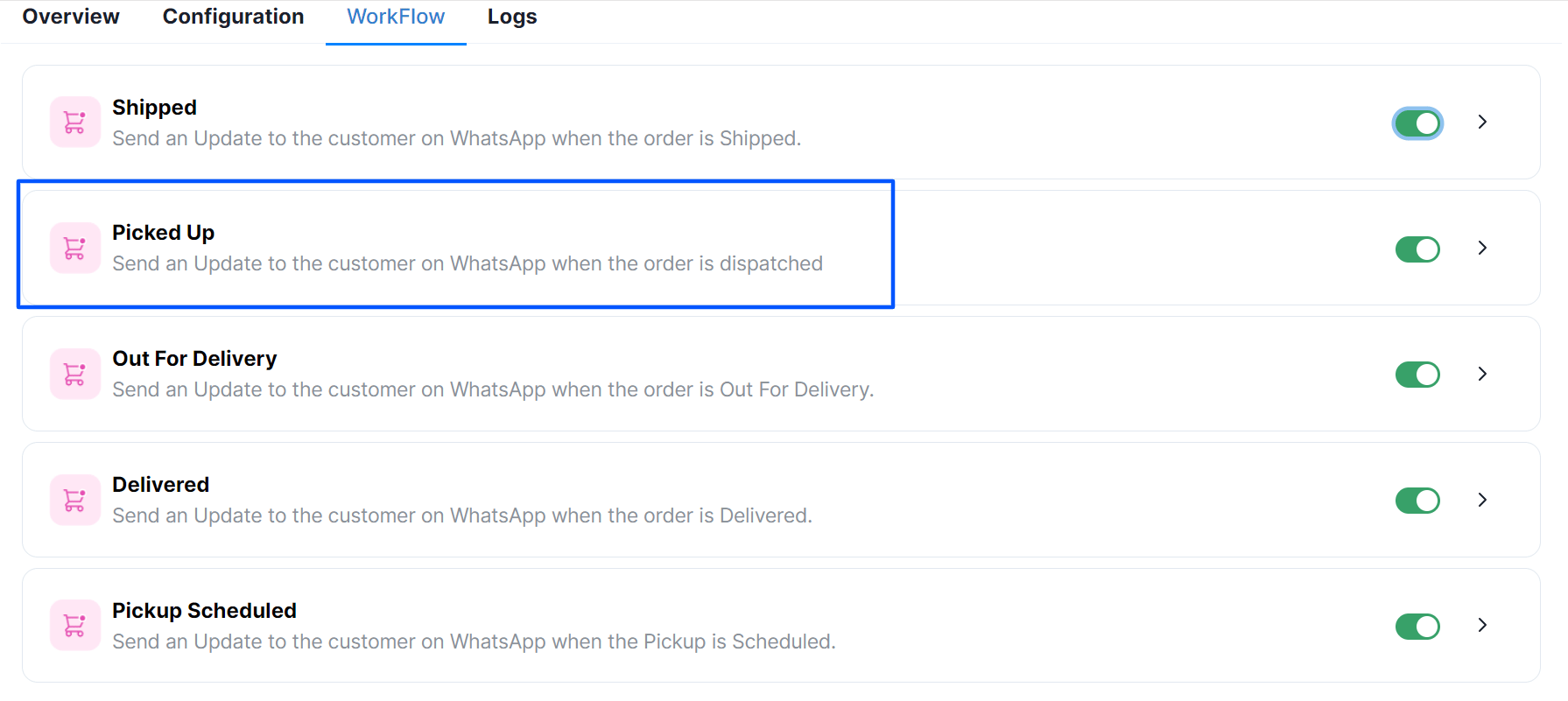
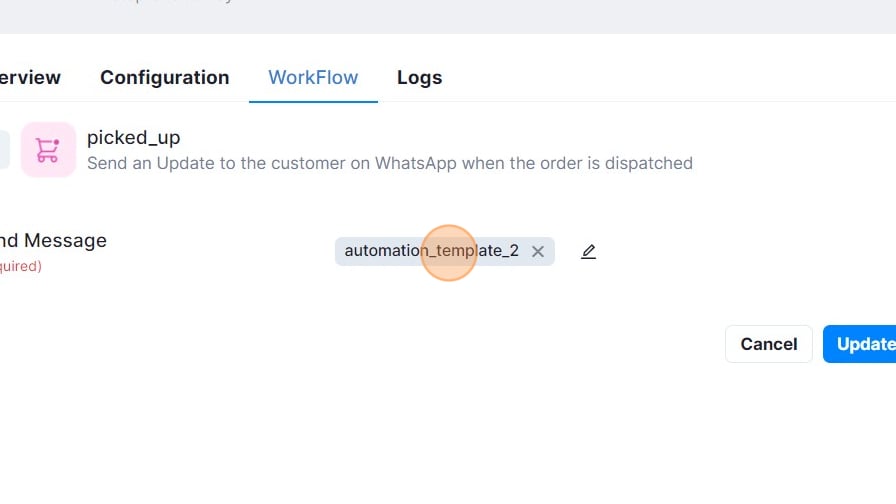
- Map the variables for the selected message templates and click on Submit.
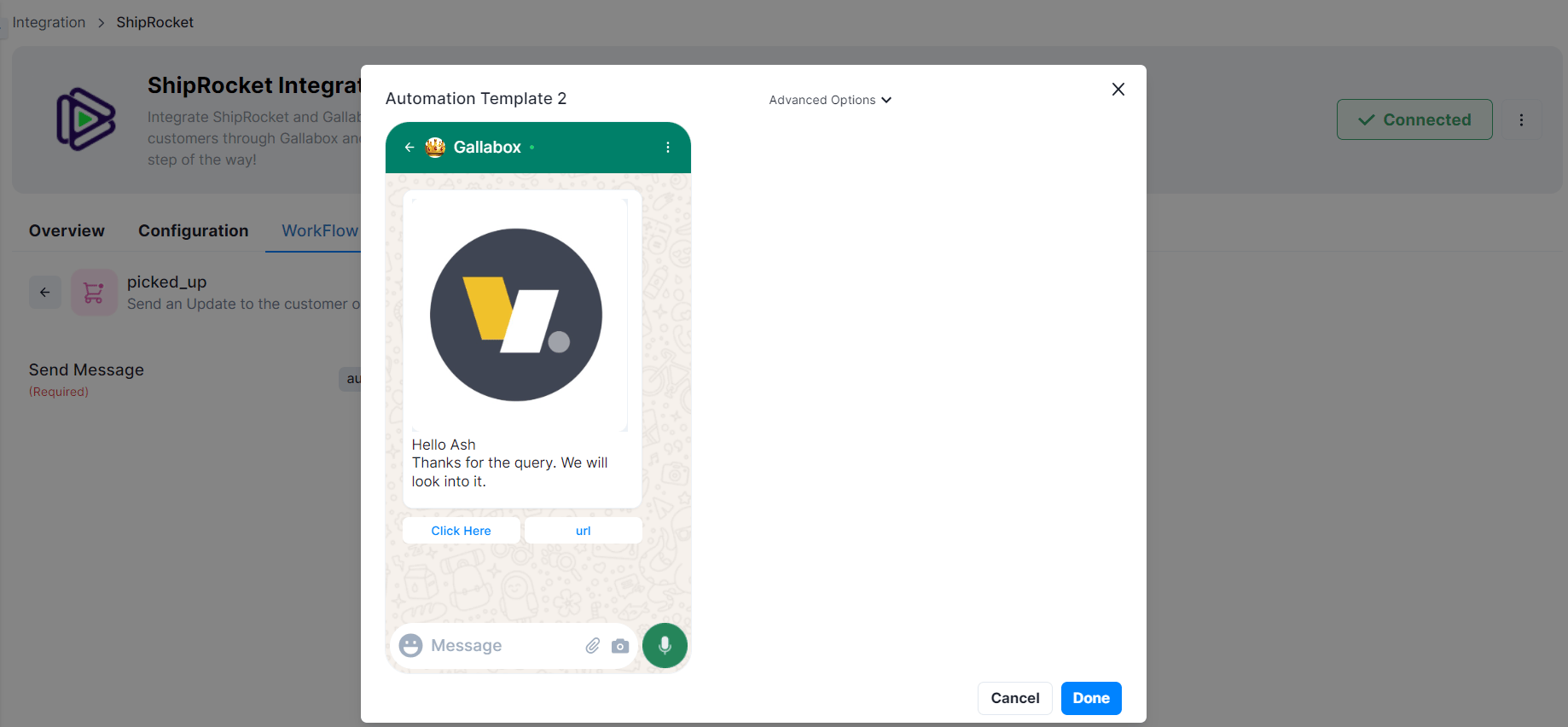
Delivery Updates Notifications
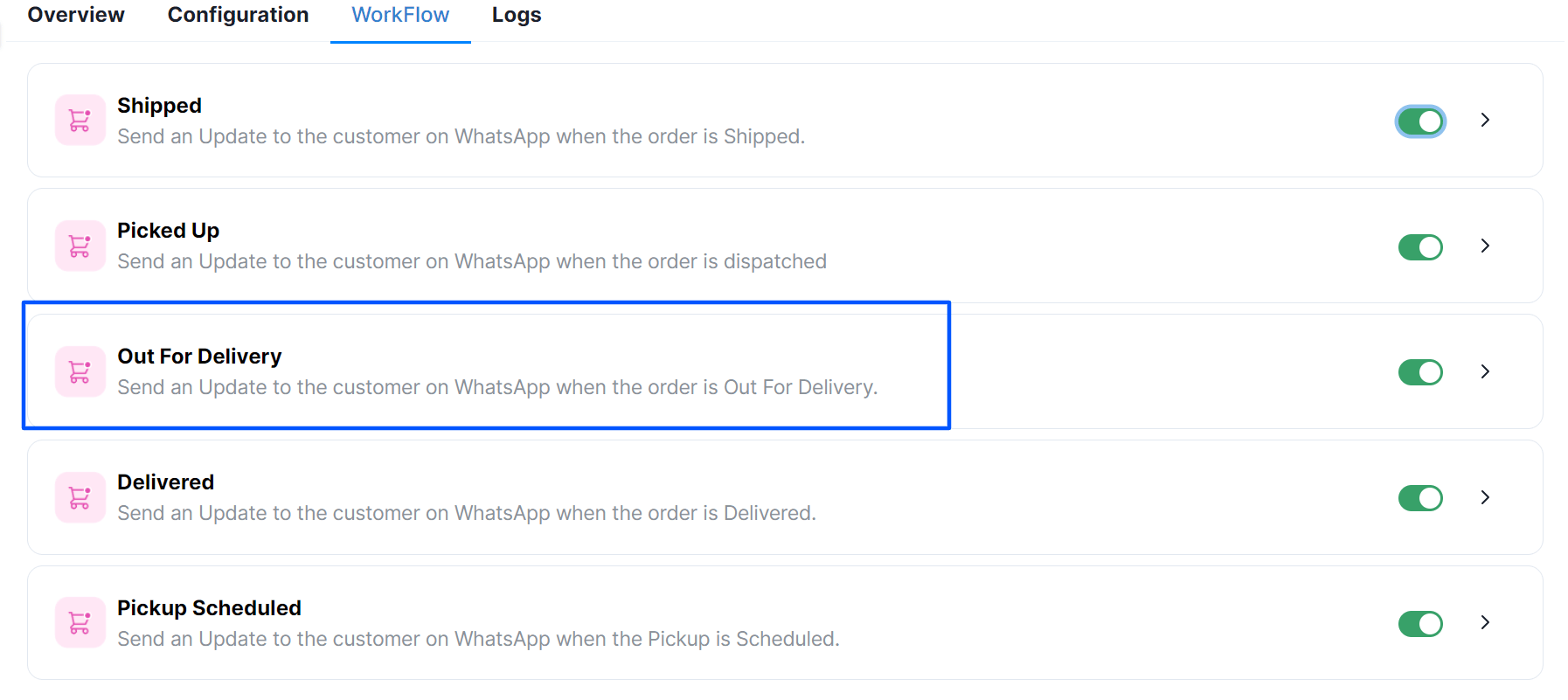
To send the out of delivery notifications automatically, you will have to create a workflow under the ShipRocket Integration with Gallabox. Let’s delve into that.- Go to My Integration. Click on the ShipRocket Integration and choose the connection you would like to use.
- Click on the toggle button beside Out for Delivery Workflow
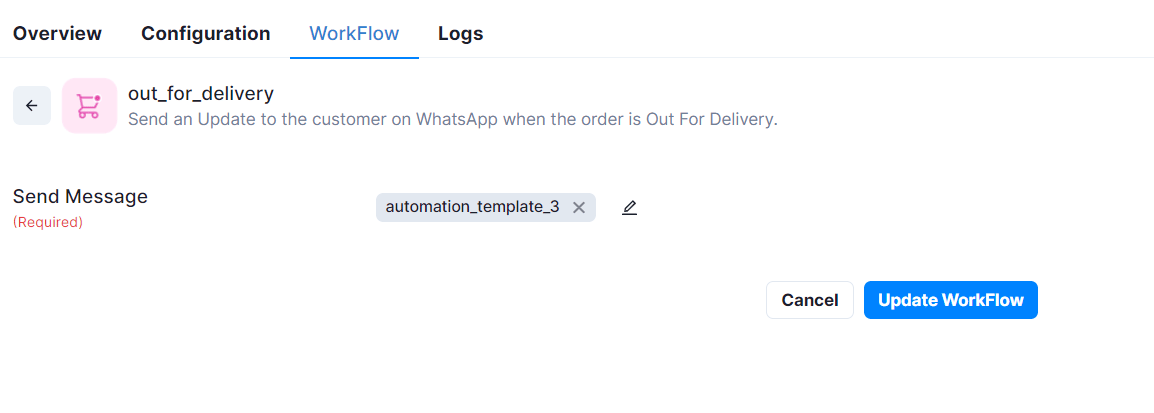
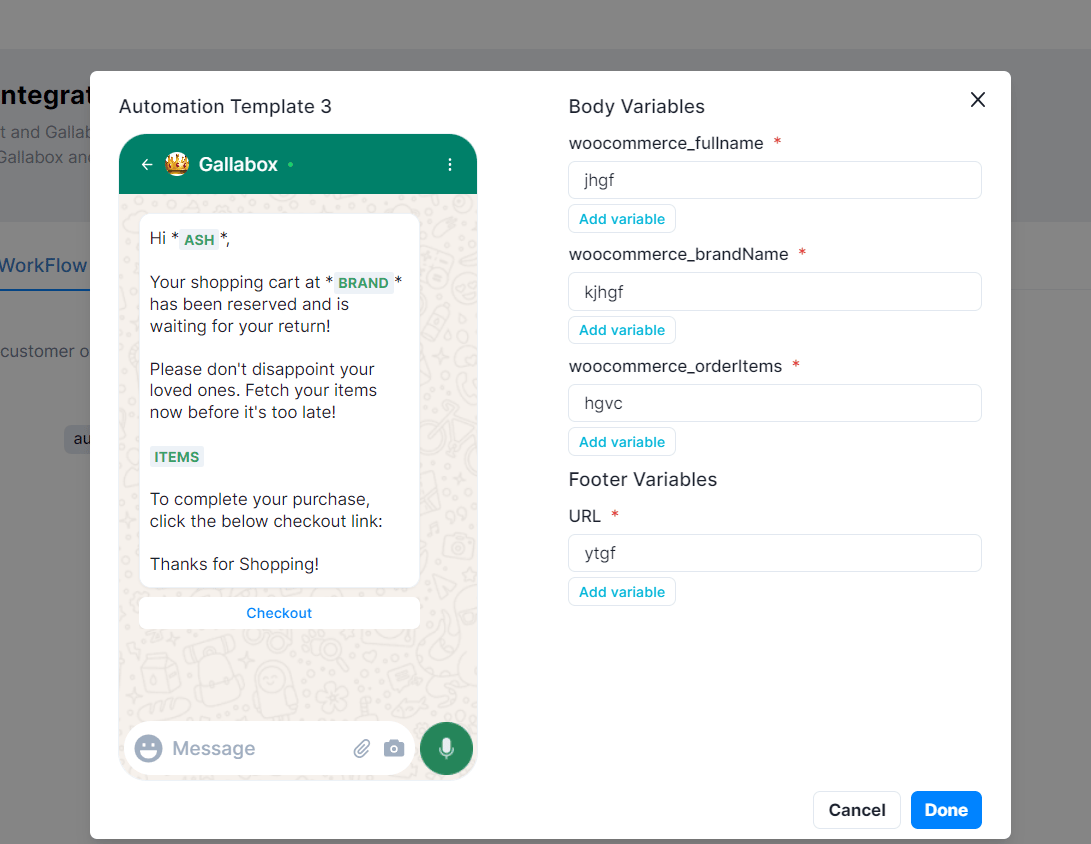
- Map the variables for the selected message templates and click on Submit.
Delivery Success Notifications
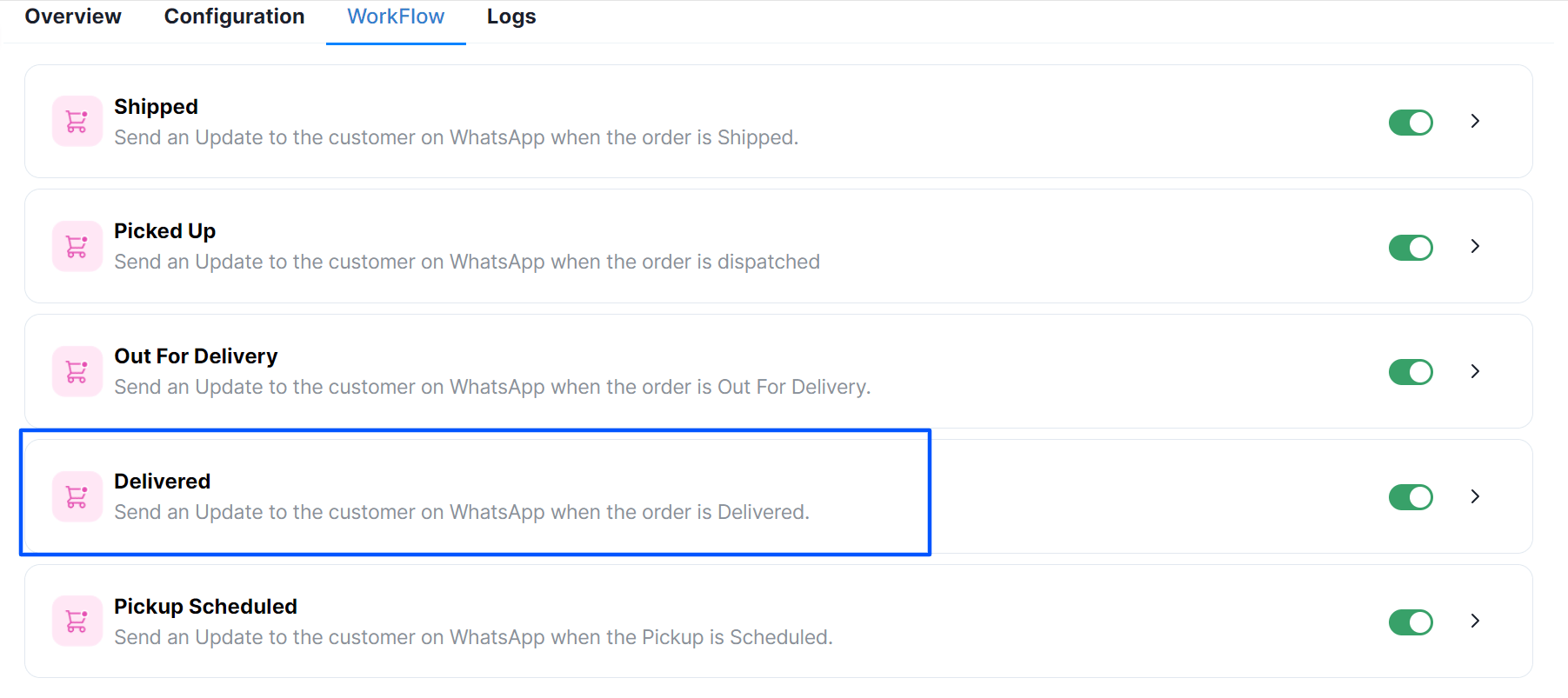
To send the order delivered notifications automatically, you will have to create a workflow under the ShipRocket Integration with Gallabox. Let’s delve into that.- Go to My Integration. Click on the ShipRocket Integration and choose the connection you would like to use.
- Click on Use button beside Delivered Workflow,
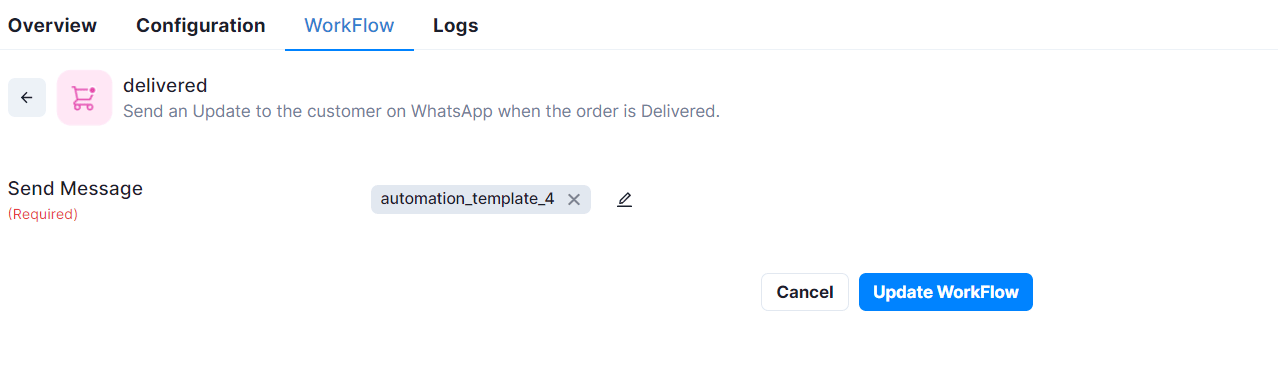
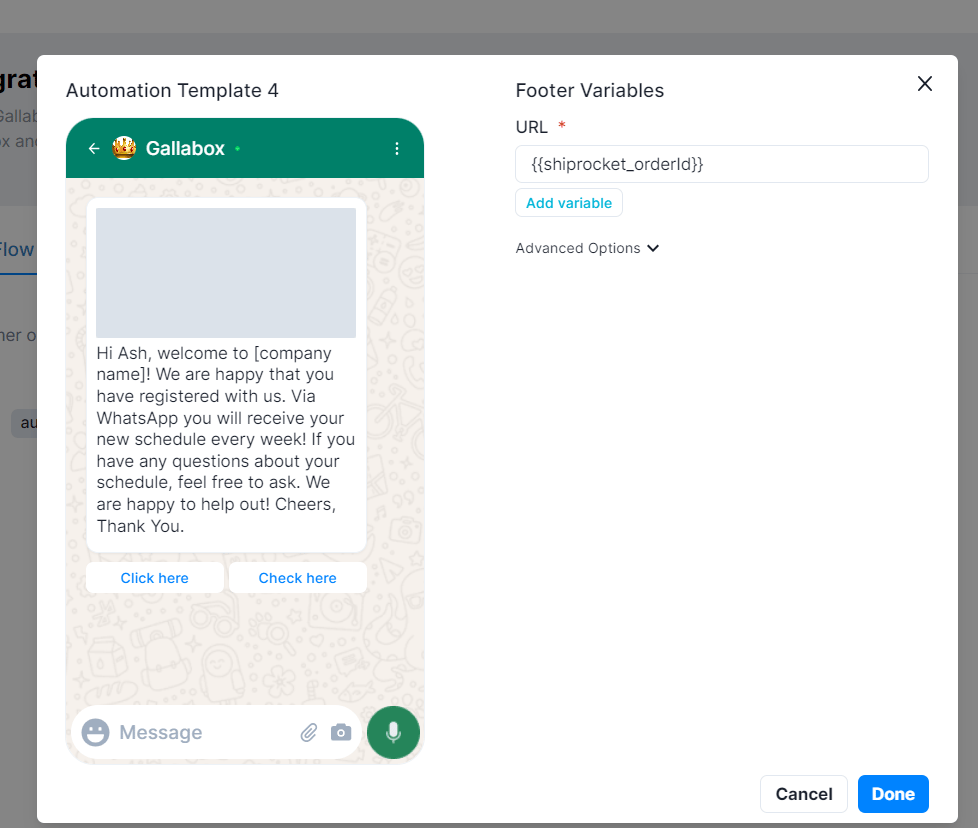
- Map the variables for the selected message templates and click on Submit.
Scheduled Pickup Alerts
To send the order scheduled for pickup notifications automatically, you will have to create a workflow under the ShipRocket Integration with Gallabox. Let’s delve into that.- Go to My Integration. Click on the ShipRocket Integration and choose the connection you would like to use.
- Click on Use button beside Pickup Scheduled Workflow,
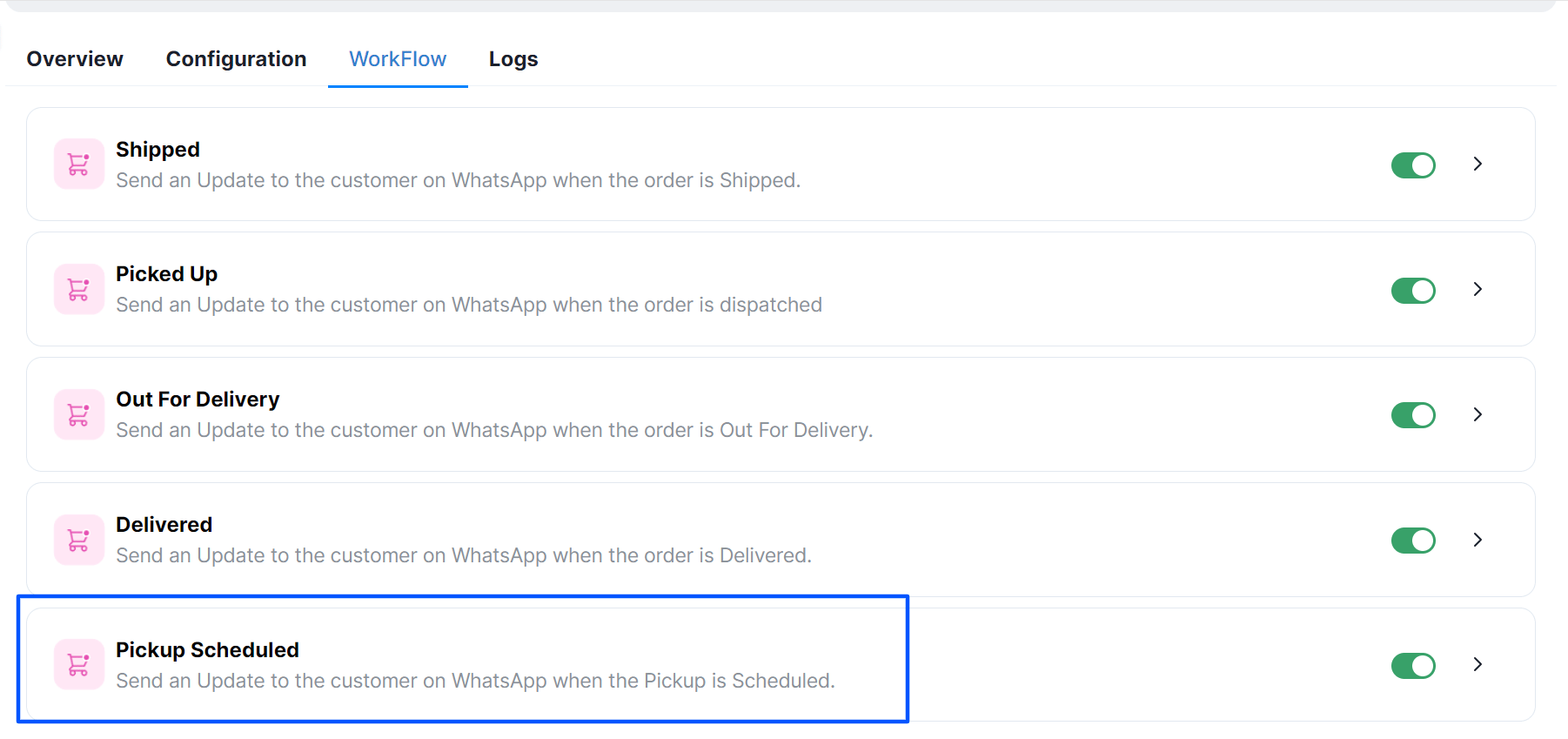
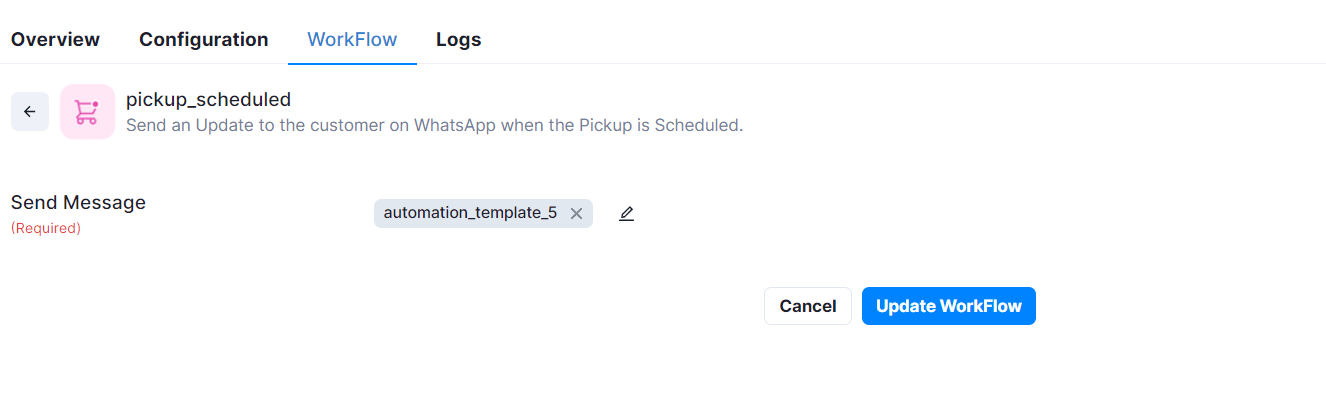
- Map the variables for the selected message templates and click on Submit.