
Where to See Your Call Data
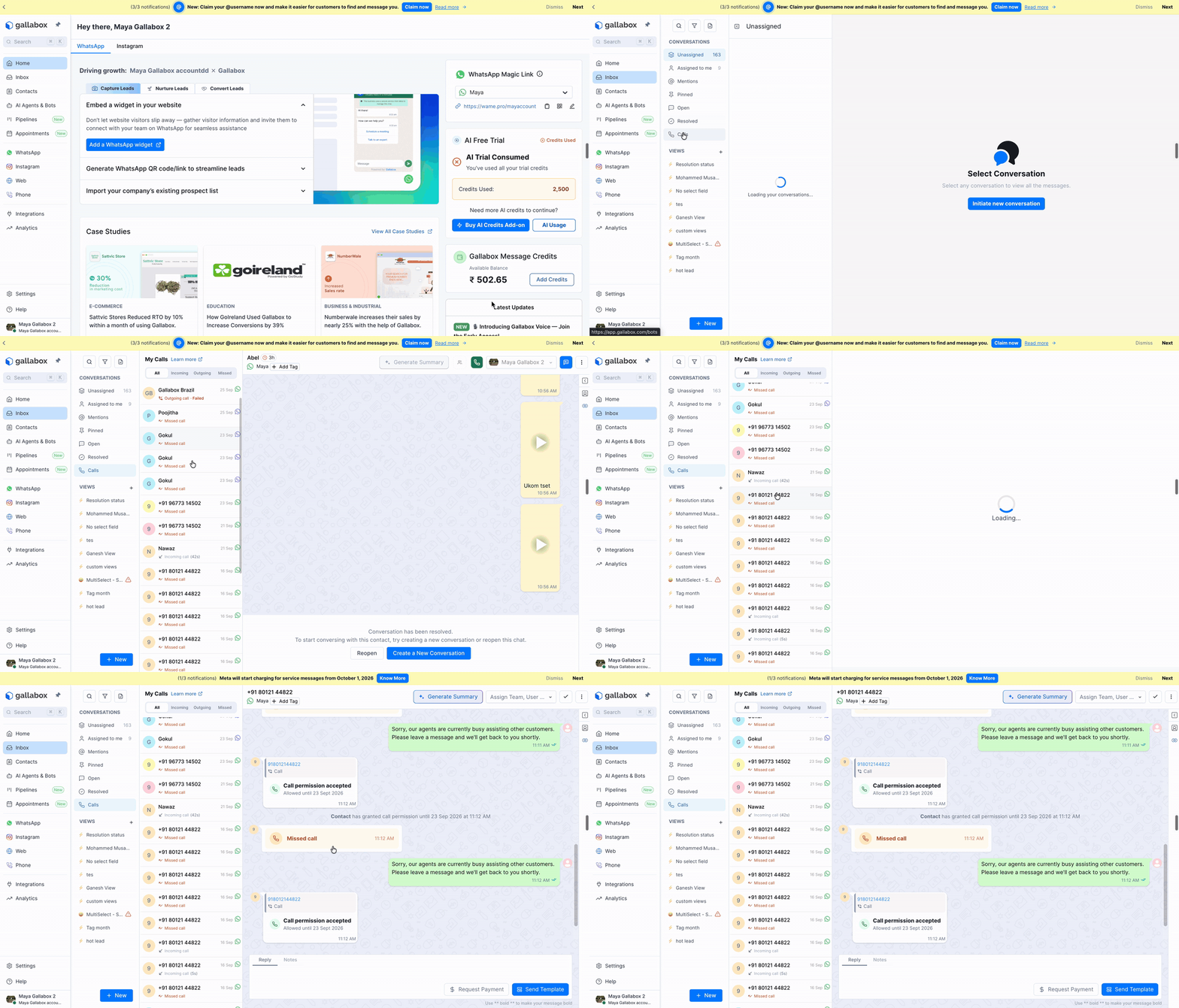
Gallabox records every WhatsApp call — who called, who answered, how long it lasted, and whether it was missed. You can see this data in two places, depending on your role:My Calls
My Calls is your personal call history, inside the Inbox. Go to Inbox → Calls to open it.Note: My Calls shows only the calls you made or received. Calls handled by your teammates don’t appear here, even if they’re on the same number. To see every call on the account, an admin can use Call Analytics.Each call shows the contact’s name, the date, the channel, whether the call was incoming or outgoing, the status of the call (for example, missed or failed), and how long it lasted if it was answered. Click a call to open that contact’s conversation, so you can reply or call back right away.
WhatsApp Call Analytics
WhatsApp Call Analytics gives admins and owners one screen for all WhatsApp call activity on the account. You can view each WhatsApp number on its own, or all numbers together, using the channel filter. It starts with the headline numbers and narrows down, step by step, to a single call.Who can use this?Go to Analytics → Call Analytics to open it.
- Roles: Owners and Admins.
- Availability: Accounts with WhatsApp Calling. Not available for numbers in regions where calling isn’t supported (Saudi Arabia, the UAE, Qatar, and Oman).
Choose a Number and Period
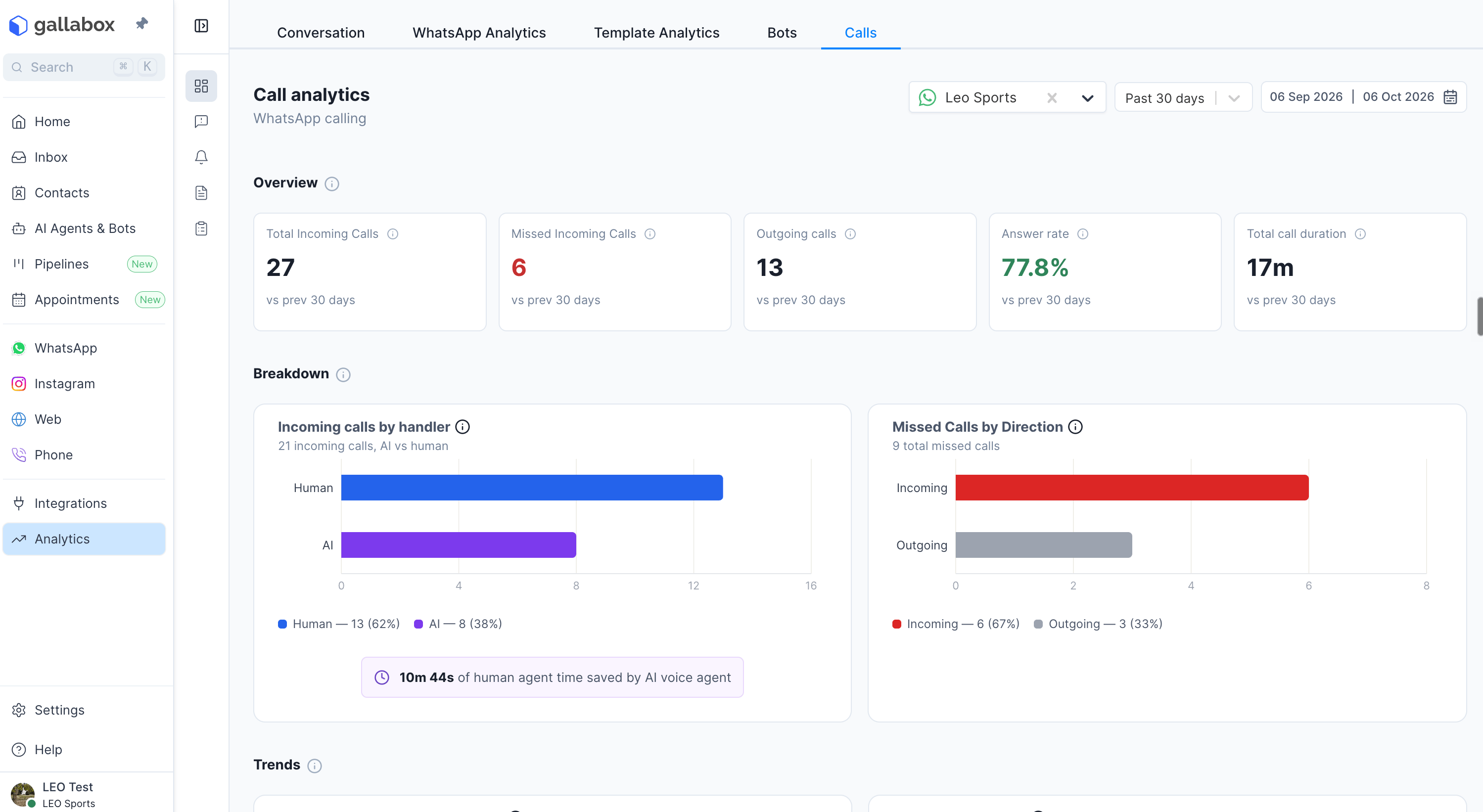
The two filters at the top apply to everything on the screen:- Channel — pick one WhatsApp number, or leave it on All WhatsApp Channels to see every number together.
- Date range — pick a preset such as Today, Past 7 days, or This month, or set a custom start and end date.
Overview
Five cards show the headline numbers for the selected period. Hover over the ⓘ next to a card’s title to see how the number is worked out.
Each card also shows how the number has changed against the prior period — a block of time the same length as your selection, ending the day before it starts.
- Select 01–08 Sep → compared against 24–31 Aug
- Select today only → compared against yesterday
Breakdown
Two charts that split the overview numbers:- Incoming calls by handler — of the incoming calls that were answered, how many an AI agent took and how many a human agent took.
- Missed Calls by Direction — missed incoming calls, compared with outgoing calls the contact didn’t answer.
Trends
These charts cover incoming calls only.- Call trend — answered and missed incoming calls for each day in the selected period.
- Missed call reasons — why incoming calls were missed. See the table below.
- Peak hours — incoming calls by day of the week and hour of the day. Switch to Missed to see when calls go unanswered, and whether that happens inside or outside your working hours.
User Performance
A table with one row per user who handled or was assigned calls in the selected period:Call Log
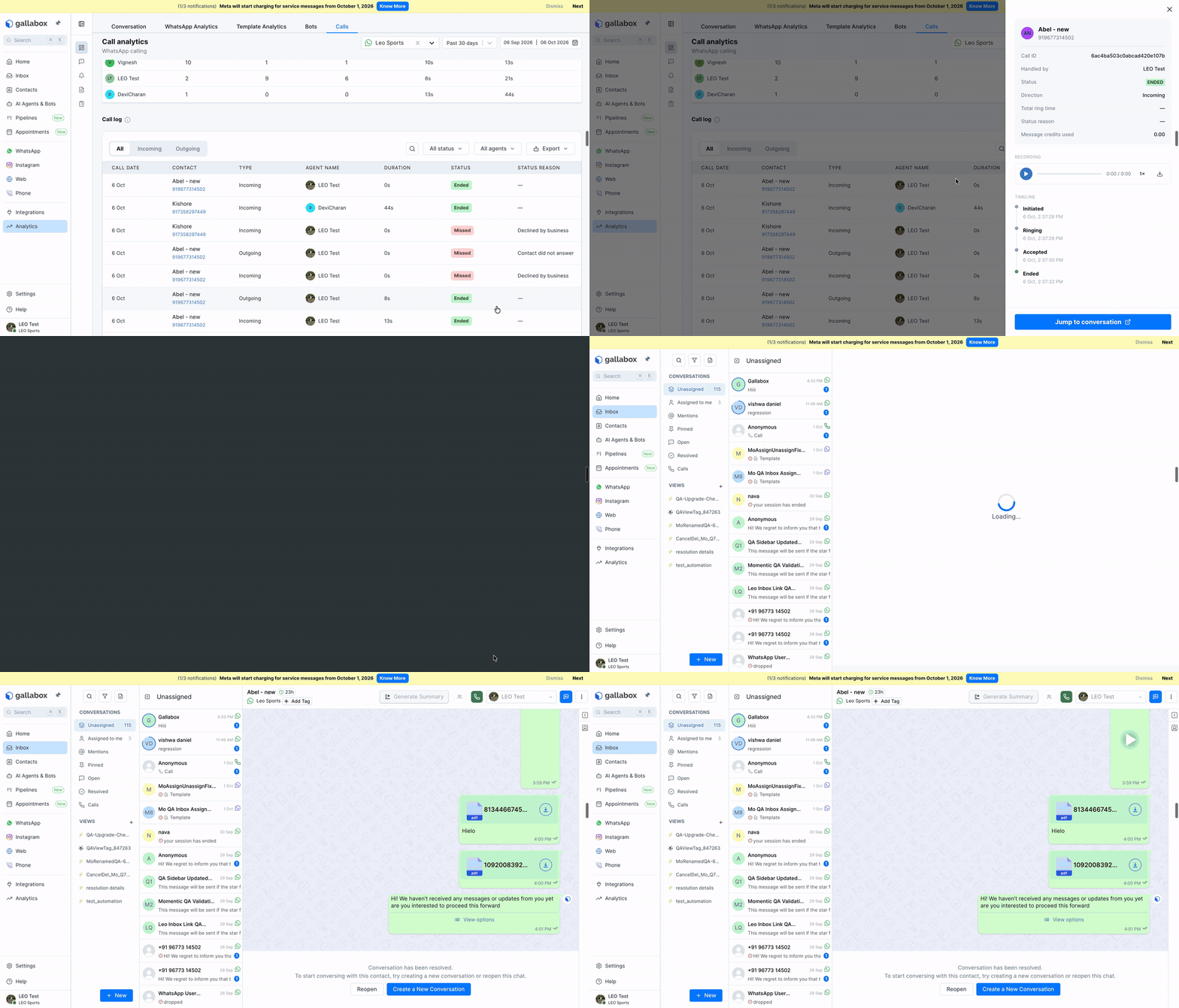
Every call on the selected number and period — answered, missed, and failed — for the whole account. Each row shows the call date, contact, type (incoming or outgoing), agent name (a user or an AI agent), duration, status, and status reason. To find a specific call:- Use the All / Incoming / Outgoing tabs to filter by direction.
- Use the status dropdown to show only Answered, Missed, or Failed calls.
- Use the agent dropdown to show only calls a specific user or AI agent handled.
- Use Search to find a call by contact.
Exporting the Call Log
Click Export to download the call log as currently filtered. The export doesn’t include the charts or numbers from the sections above. The file is prepared in the background and appears in Active exports. Download it within 7 days.Quick Reference
Where to next
- Incoming Calls — routing, assignment rules, and how missed calls happen.
- Outgoing Calls — permissions, placing calls, and limits.
- Pricing — how calls are charged.